We recently updated our systems to allow you as a user to control your own lead notifications.
Stay in control of your inbox by customizing when you receive lead notifications. You can toggle alerts for your entire account, specific projects, or individual campaigns.
Step 1: Login to Supervision
Go to app.superhumanprospecting.com.
Step 2: Open Notification Settings
Once logged into your dashboard, look for the purple gear (Settings) icon located in the bottom-left corner of your screen.

Step 3: Customize Your Preferences
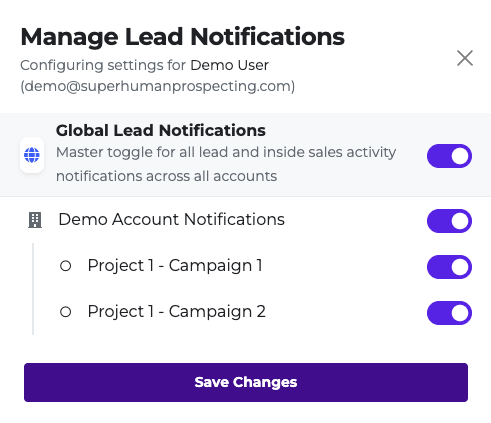
Clicking the gear icon will open the Manage Lead Notifications window. Here, you have three levels of control:
- Global Lead Notifications: Use this master toggle at the top to turn off all lead and inside sales activity notifications across every account you manage.
- Account Notifications: Toggle notifications from an individual account.
- Campaign Notifications: For granular control, you can turn alerts on or off for specific projects or campaigns within an account.
After making your selections, click the Save Changes button at the bottom to update your preferences.
Having Trouble?
If you are unable to log in, cannot see the settings icon, or have difficulty saving your changes, we are happy to handle it for you. You can:
- Create a Support Ticket: Submit a request through this portal.
- Contact Your Account Manager: Reach out to your dedicated manager directly, and they can update your notification preferences on the backend.
Was this article helpful?
That’s Great!
Thank you for your feedback
Sorry! We couldn't be helpful
Thank you for your feedback
Feedback sent
We appreciate your effort and will try to fix the article